MiniMax H3: Turn a Photo into a Video Without Losing the Frame
For MiniMax H3 Image to Video on Kinevello, start with a photo already composed for your destination. The single-image mode uses Auto framing from the source. Use Reference to Video when the photo should guide a newly composed scene instead.
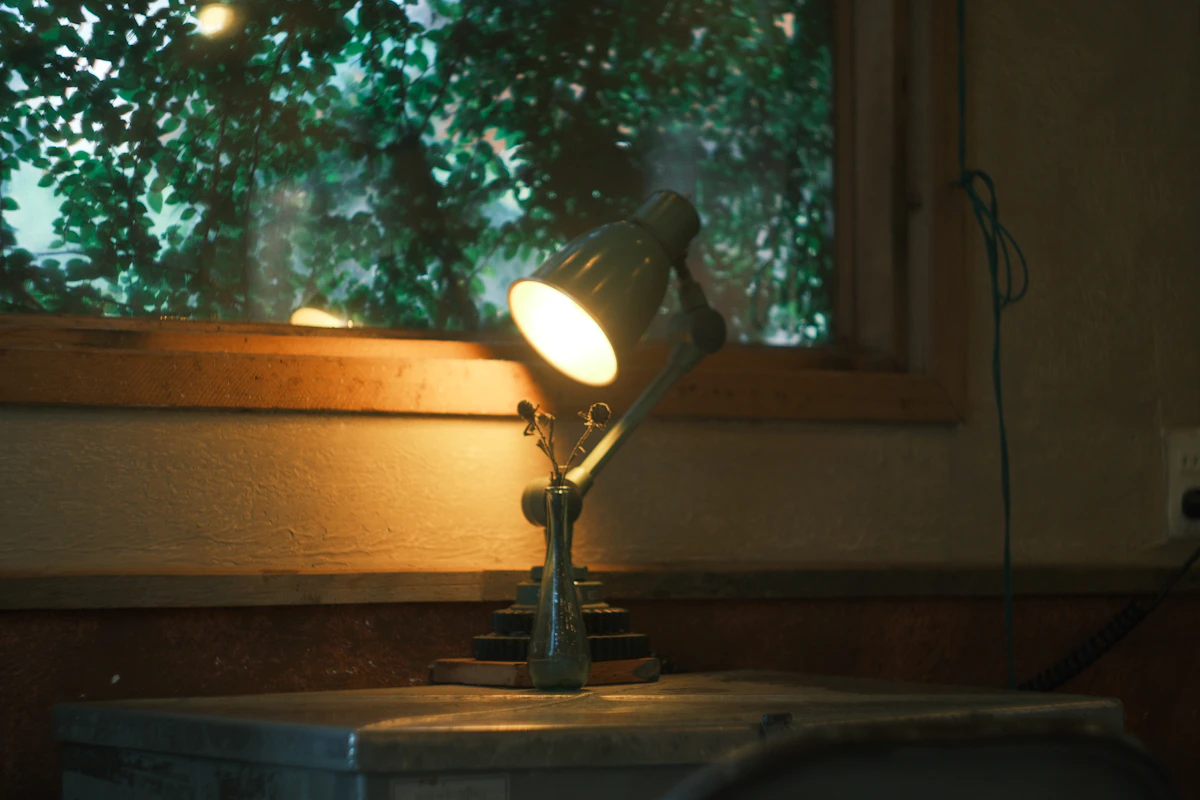
Crop the photo before writing the prompt
Suppose you have a wide photo of a lamp but need a vertical product clip. Decide what can be cropped before you upload. Leave space above the shade and below the base, and make sure the cord does not become an unexplained fragment at the edge. A motion prompt cannot reliably restore parts of the product that the photo never showed.
Kinevello’s MiniMax H3 single-image tool accepts one starting image and shows Auto for the output format. It follows the source framing rather than offering a separate ratio selector. Start with a suitably cropped portrait image for a vertical composition; inspect the finished frame before using it in an ad.
First frame or reference image?
A first frame gives the shot a starting composition. A reference gives the model visual material for a new composition. If the placement of the lamp and table matters, begin with Image to Video. If you want the lamp in a different room, Reference to Video is the more relevant workflow.
MiniMax H3 currently accepts up to five reference images in Kinevello. Give each image a clear job: one view of the object, another useful angle, perhaps a room reference. Several near-duplicates add little to the brief, while conflicting colors or shapes make the intended object harder to describe. Text and reference modes expose formats including 16:9, 9:16, 1:1, 4:3, 3:4 and 21:9; reference mode also offers Auto.
What 768p and 2K cost
| Model | Quality | Credits |
|---|---|---|
| MiniMax H3 | 768p | 3 |
| MiniMax H3 | 2k | 4 |
These are Kinevello credits for standard studio videos, not the provider’s own credit units or template prices. Read the quote after choosing your settings. A different duration or quality can change the total. See how video credits work.
Choose the lower setting while working out movement. Consider 2K when the shot is settled and your delivery needs more detail. Neither setting guarantees readable fine print, accurate reflections or a perfectly unchanged object. For comparisons with other families, remember that 768p and 720p are different output tiers.
Describe one change the viewer should notice
A still product can support a useful clip without a complicated orbit. For the lamp example:
The table lamp stays in place on the desk. Its warm light gradually brightens the wall behind it. The camera makes a small, slow push forward. Keep the shade, base and desk arrangement consistent.
For a portrait, use a short gesture such as a glance toward the window. Ask for one action before adding camera movement, wind and a background event. These are prompt-writing suggestions, not tested MiniMax outputs. Check object edges or facial features throughout the clip, including the final frame.
The provider’s H3 documentation says image-to-video output includes generated stereo sound and that audio cannot be disabled at that endpoint. Do not assume a silent source photo guarantees a silent video. Review the soundtrack and mute it in your editor if your delivery needs silence.
Prepare an image Kinevello can accept
Use PNG, JPG or WebP under 30 MiB. Each side must be 301–5,999 pixels and the width-to-height ratio must be between 0.4 and 2.5. These are Kinevello upload requirements, not a promise that every extreme crop will work well. Use material you own or have permission to submit; portraits must follow the site’s consent and public-figure restrictions.
For file problems, read uploads, downloads and failed generations. For the broader choice between a starting frame and references, see the image-to-video guide.