How to Remove Audio from a Video Before Adding Music
To remove audio from a saved video, open AudioRemover, choose the video, select Remove audio and download the silent copy. Keep the original file with sound. You can then add music or narration in your editor or the app where you plan to post.
Updated
When a silent copy is useful
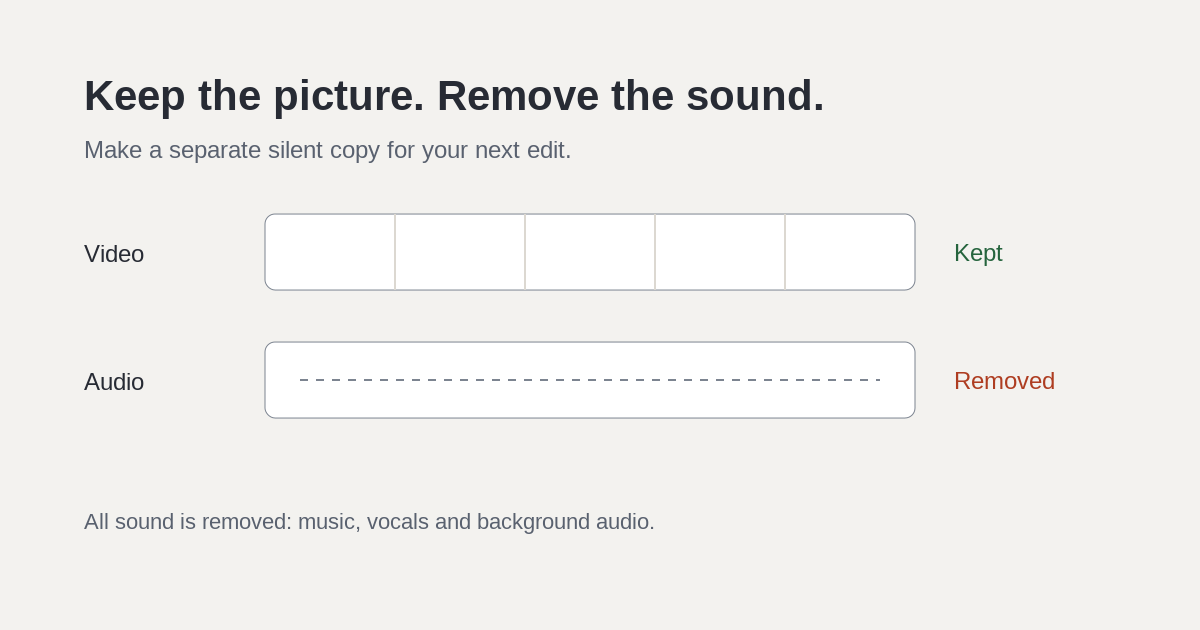
A generated video may already contain music, vocals or background sound. If you want to use a different track or record a voiceover, that original audio can compete with your new soundtrack. A separate silent copy gives you a clean starting point.
For example, you might download a Hotel Lobby duo or a Bulin 47 freestyle, then prepare a silent version for a new edit. Save the original performance too: removing the audio also removes the generated singing and rap. Replacement music may not match the performers’ mouth movements or timing.
How to remove audio with AudioRemover
- Download and keep the original. Save the finished video from Kinevello before leaving its result page. Keep that file with sound so you can return to it later.
- Open the audio remover. Go to our Remove Audio tool page and select Open AudioRemover. It opens audioremover.net in a new tab, a separate website.
- Choose your saved video. Select Choose a video. The site currently lists MP4, MOV and WebM inputs with a 100 MiB file limit.
- Remove the audio and save. Select Remove audio, wait for processing, then select Download. Save the exported file separately so you can distinguish it from the original.
- Check the downloaded copy. Play it with your device volume on. Confirm that it is silent and that the framing, movement and duration are what you expected before starting the next edit.
According to AudioRemover’s current instructions, processing happens on your device and the main video stream is copied without re-encoding.
Add music in the app where you plan to share
Open the silent copy in your video editor or the app where you plan to publish, such as TikTok or Instagram. If music is available for your account and intended use, choose a permitted track there, trim it to the moment you want and preview the combination. Available tracks and publishing controls can vary by app, account and region.
Check the opening beat, cuts and ending with the new sound. A replacement track does not automatically retime an AI performance or make its mouth movements match new lyrics. If you need the original generated delivery, use the original file instead.
Use audio you have permission to publish for the intended use. Removing a soundtrack does not grant rights to replacement music or guarantee that a platform will accept the finished post.
Muting playback and removing an audio track are different
The mute button in a video player only changes what you hear during playback. It does not save a new file without audio. If your next edit needs a silent source, download an exported silent copy and check that file.
AudioRemover removes every audio track, including speech, singing, music and ambient sound. It cannot keep a voice while removing background music mixed into the same track. For that task, look for a separate voice or music separation workflow.
If your file will not process
First check that the original plays correctly and is in a supported format within the tool’s current size limit. If processing will not start, check your connection and retry. If your browser runs out of memory, try a smaller copy or use a local editor. Keep the original throughout.
For Kinevello download availability and generation issues, see video files, downloads and failed generations. Audio removal is a separate step after generation; it does not change your original Kinevello task or the credits charged for it.